


Data rarely arrives in one tidy format. A partner might hand you a CSV export, an internal API might log activity as JSON, and an analytics pipeline might drop its output as Parquet. Historically, getting all of that into one table meant staging each format separately and reconciling them yourself. Navicat 18's rebuilt Import Wizard is aimed squarely at that problem, and to see it in action, we'll merge three different file formats - built from MySQL's sample classicmodels database - into a single table.
Parquet Joins the Format Lineup
Parquet is now a selectable source format right alongside the Import Wizard's existing list - CSV, JSON, XML, Excel, DBase, etc. For data engineering work specifically, this matters: Parquet is the default output format for tools like Spark, Pandas, and most cloud data warehouses, and being able to pull one directly into a table without converting it first closes a real gap.
One Screen, Multiple Sources, Multiple Tables
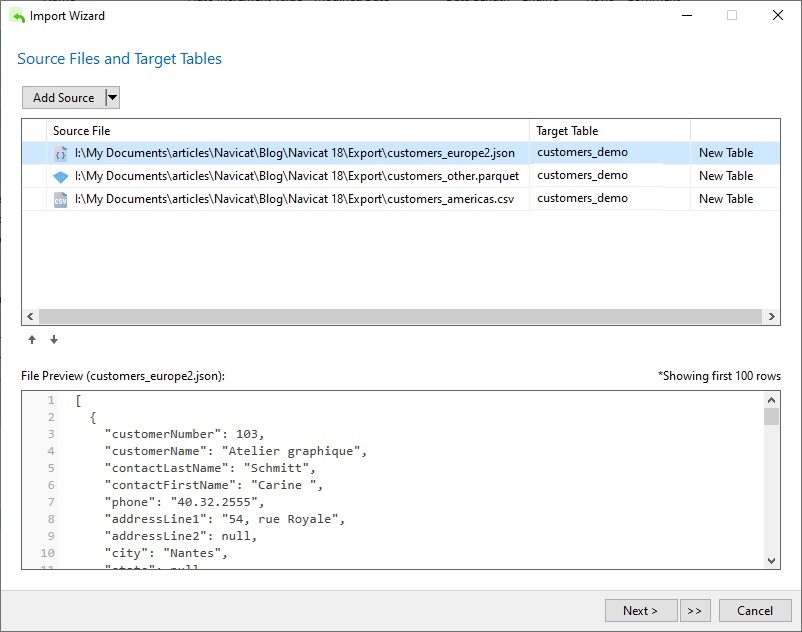
The bigger change is structural. Rather than running the wizard once per file, the new Source Files and Target Tables screen lets you add several sources at once - of different formats - and assign each one a target table independently. Assign two files to the same target, and their data merges into one table on import, rather than requiring separate passes.
Try It: Merging Three Formats Into One Table
Suppose you've got three separate customer files, organized by region: a JSON file for Europe, a CSV for the Americas, and a Parquet file for everyone else. Now you want to combine all three into a single new table. Here's how to do it in Navicat 18:
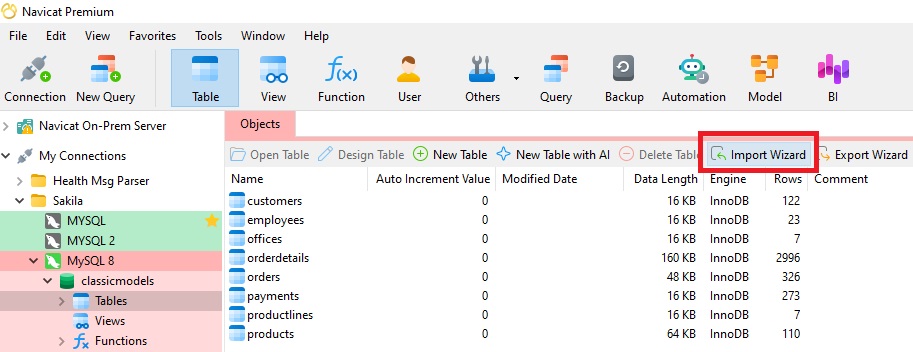
- In the main Navicat window, select the Tables in the Navigation Pane and click the Import Wizard button on the Object Toolbar. It's highlighted in red in the image below:
- On the Source Files and Target Tables screen, click Add Source, choose JSON file (*.json), and select your Europe export.
- Click Add Source again, choose CSV file (*.csv) from the drop-down, and select your Americas export file.
- Click Add Source once more, choose Parquet file (*.parquet), and select your remaining export.
- Note that Navicat automatically designates a New Table as the Target Table. We can change the target by selecting an existing table or by renaming it manually. For each of the three rows, set the Target Table to "customers_demo".
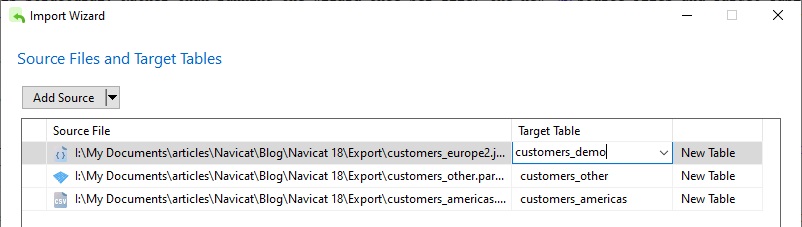
When completed, the Source Files and Target Tables screen should look similar to this:
- Click Next to review field mappings for each source. The wizard reconciles each format's native types into a consistent target schema, so a CSV string, a JSON key, and a Parquet column all land in the same set of fields. There, we can check the Result Preview pane as you select each source's associated
customers_demoon the left. Navicat renders the transformed data before anything is actually written, which is a good time to catch a mismatched column before committing.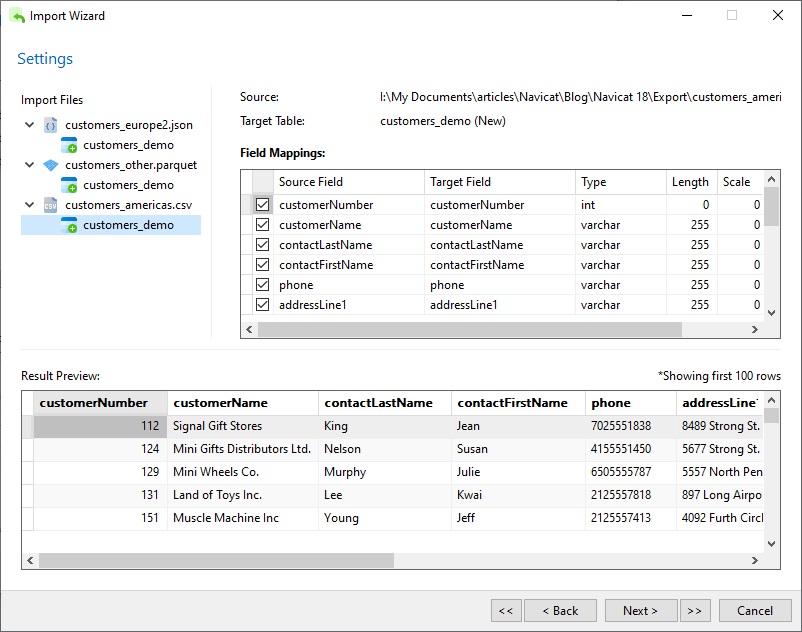
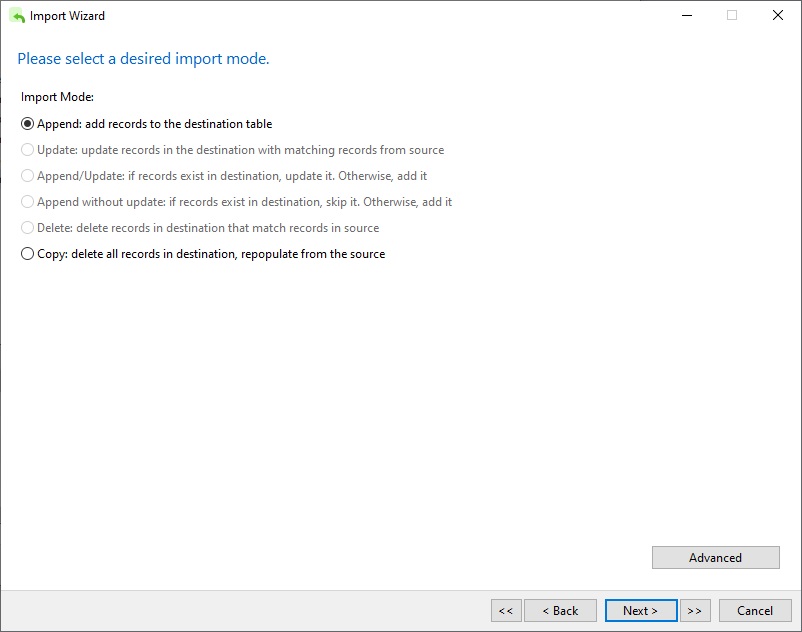
- Click Next to choose the import mode. In our case, we only have two options available: to append records to the destination table or delete all records and repopulate from the source. Since our target table is brand new, we'll accept the default append option.
- Click Next to reach the final step, then Start to run the import.
Navicat will generate an output log as it progresses. It will attempt to create the
customers_demotable for each source, which will result in an error for the last two files, since the table will exist at that point. That's not a problem, as Navicat will simply proceed to append the new records. In fact, we can see in the summary that all 63 records were successfully added.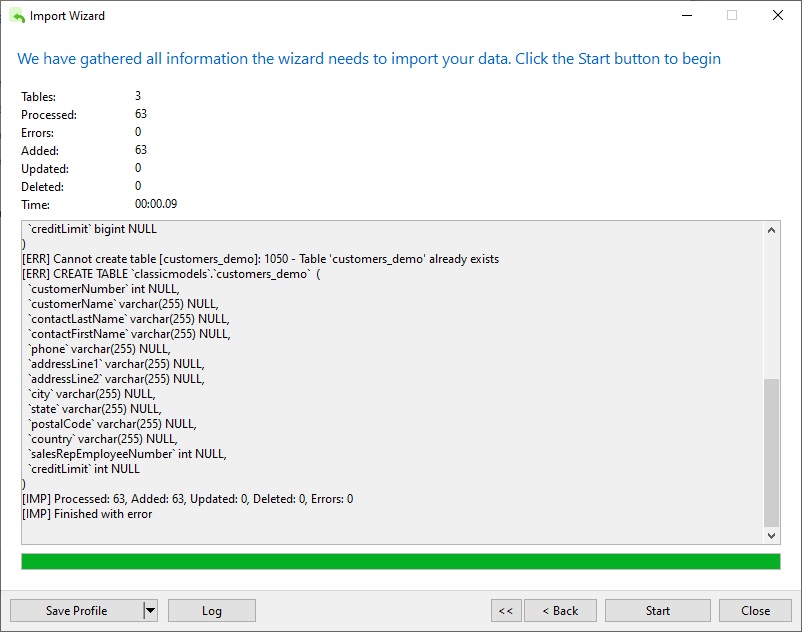
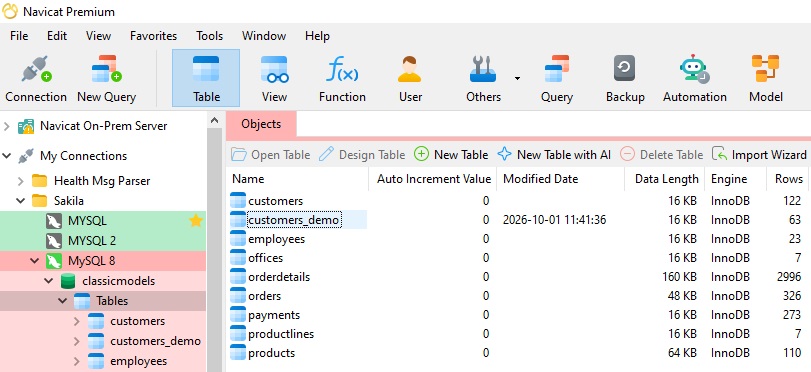
Once we close the wizard, the new table will be visible in the Objects list:
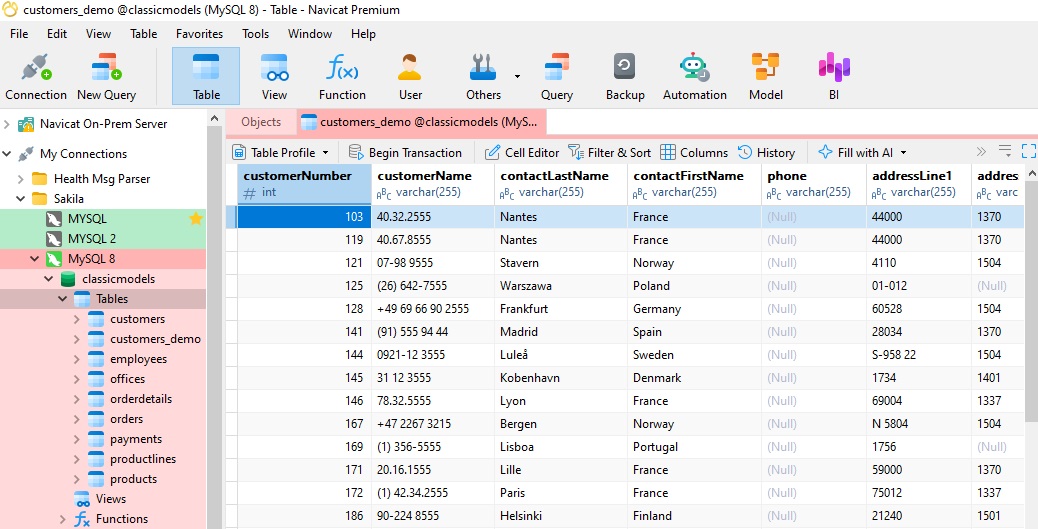
We can also open the table to verify that it has been populated:
Why It's Worth Knowing
This isn't a flashy feature, but it's a genuinely practical one for anyone doing regular data consolidation work that requires pulling together exports from different systems that aren't able to agree on a single file format. Being able to point the wizard at several heterogeneous sources and land them all in one table in a single pass, replaces what used to be a significant scripting exercise with a few clicks.